
|
https://ift.tt/2rFo7Ir
How to Use the Instagram Close Friends List for Business https://ift.tt/2rI1WBs
In this article, you’ll discover five ways to use your Instagram close friends list for your business. 
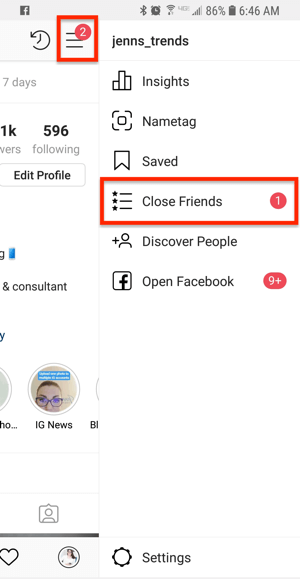
What Is the Instagram Close Friends List?While most users have long enjoyed the simplicity of Instagram’s interface, one of the features that users have long wanted is a segmented list option. We’re able to create lists on nearly every other social media platform, but not on Instagram. And, realistically, most people follow hundreds of other accounts, maybe even thousands, making it difficult to share select content with specific people. Instagram’s solution was to test a new feature over the last year that allowed users to select a group of people for a specific list. After a variety of tests and beta features, Instagram has released Close Friends, which allows you to share Instagram stories with only a select group of people from those you follow. Here’s how to start using this feature for your business. #1: Set Up Your Instagram Close Friends ListOnly you can set up your list of close friends. People can’t request to join your list, or see if you’ve added or removed them. As with most features, Instagram wants to ensure you know this tool is there and can access it from multiple locations. From Your Profile SettingsTo set up your close friends list from your profile settings, go to your profile on Instagram and tap on the three-line button in the top-right corner. From the menu, select Close Friends.
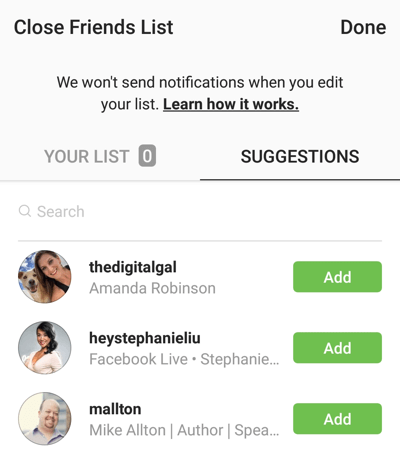
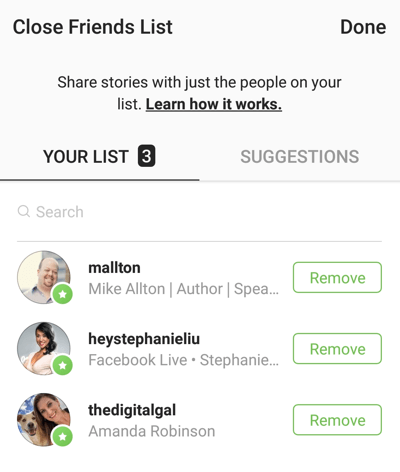
The close friends list will open, providing you with recommended users to add. You can also use the search field to find specific users to add to the list. Simply tap the green Add button to move that user to your close friends list.
To remove someone from your list, tap Remove next to that user.
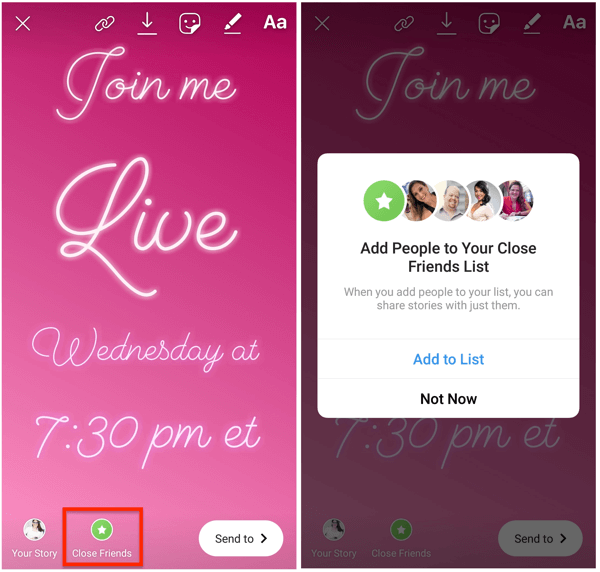
From Your Story PostImportant: This method of adding people to your close friends list will work only if your list is empty. Begin uploading an Instagram story as usual and tap the green star icon at the bottom of the screen to add people to your close friends list. If there’s no one currently on your list, a pop-up will open, allowing you to add people to the list. Once you’ve added people to the list, that story post will be shared with them.
Things to Know About Adding Friends to Your List
#2: Send Instagram Stories to Your Close Friends ListFor now, Instagram only allows stories to be shared with those on the close friends list. Regular posts in your feed will remain public. To send a story to your list of close friends (once your list is complete with those you want included), simply create a story just as you would any other. Upload an image or video, add stickers or text, and select filters for your story. Instagram has slightly altered the layout for sharing stories to accommodate the new Close Friends option. Now, at the bottom of the story upload screen, you have the option to send your story to your close friends.
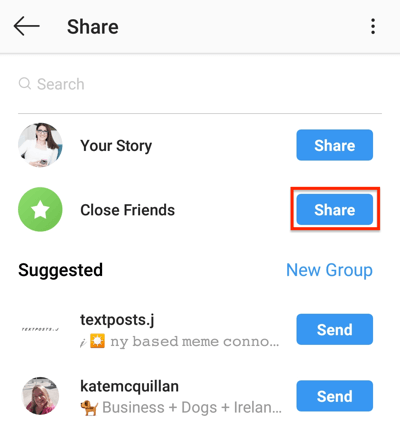
When you tap the Send To button on the story upload screen, you see a list of sharing options including your story and your close friends list. You can also search for individual users or groups. Tap the Share button next to Close Friends.
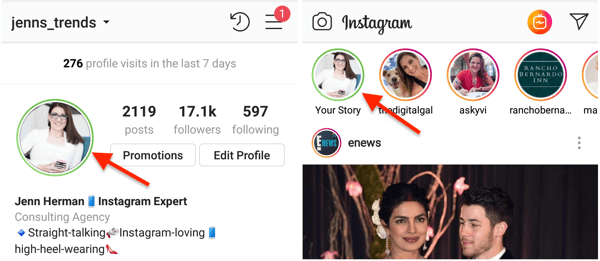
Once you’ve shared a story with your close friends list, you’ll notice that the colored circle around your profile photo turns green, versus the normal multi-colored ring.
When you view your current Instagram stories, any stories you’ve sent to your close friends will be denoted as such with the green notification at the top of the screen. Those stories will appear in sequence with any other stories you’ve shared with your entire audience. Experience 3 days with the best social marketers. Discover the latest tactics and improve your marketing know-how!
Additionally, anyone who’s on your close friends list will see that the posts you’ve shared with them are because of their presence on your list. They’ll see the green circle around your account in the Stories feed, and the green Close Friends notification on the post itself. When they view your stories, they’ll see all of them—both regular and close friends posts—in sequence of how they were uploaded. People who aren’t on your close friends list will only see the public posts in sequence.
Important: The Instagram story posts that you share with your close friends list won’t appear in the Insights for your business account. They’re considered separate content that isn’t publicly available so there won’t be any data on them. You will, however, be able to see how many people have viewed the post (and who they are) while the story is still live on your account for the 24 hours after upload. #3: Use a Close Friends List for BusinessWhile the Close Friends tool sounds fun for the average user, businesses can take advantage of this feature, too. Here’s a variety of ways you may consider incorporating this new tool. Remember: To add someone to your close friends list, you have to be following them. This means you may have to follow customers or people you wouldn’t normally follow as your business. Deliver Rewards to Your Top FollowersInevitably, you’ll have followers who frequently, if not always, like your content or comment on your posts and followers who post about your products or tout your services to their friends. Consider adding these dedicated followers to your close friends list and share exclusive coupon codes, bonus features, or early access to new releases. Send Exclusive Content and Offers to VIP or Group Members
If you offer a VIP membership or private group to your customers, you could put those users on your close friends list for added incentive to both join the group and get more rewards. Similar to rewarding your top followers, you could offer exclusive discount codes, early access to products or features, special messages, personalized video messages, and more. If you’re a coach of any sort (business coach, fitness coach, nutritionist, etc.), this would be a great way to put all of your paying clients into one group on Instagram where they get exclusive content as paying customers. The rest of your audience still gets your educational and valuable free content, but they won’t see the high-value tips and motivation you’re giving your paying members. Collaborate With InfluencersIf you regularly work with specific influencers or brand ambassadors to promote your business, you can add these people to your close friends list to share new features, products, or updates that they can use to help promote your brand more effectively. This gives them early access and opportunities to ask you questions before details are shared publicly with your audience. Share Private or Behind-the-Scenes Content With Mastermind ConnectionsUsing Instagram stories to show behind-the-scenes content is a popular tactic. But sometimes you don’t want everyone to see that side of your business. You could select specific people to whom you’re more comfortable showing those vulnerabilities or who you know would find more value in those unique perspectives on your brand. Show Gratitude to Loyal Customers With a Video Thank YouWe’re so programmed to do things online that we cherish receiving handwritten notes. While Instagram stories won’t be as personal as a handwritten note, you could share a thank-you video or a video of you writing a note to thank your dedicated customers. And instead of having to DM each one, you could put them all in your close friends list and hit them all at once. This is just one more way you can get creative with the close friends list. All of the tips listed above show fun ways to reward and connect with your audience on Instagram. This new feature is one more way you can capitalize on Instagram to create real relationships with the followers and customers on your Instagram profile. Taking that extra step to offer them something special will help validate their presence and build that loyalty with your brand. ConclusionInstagram users have long desired a segmented list feature. One workaround that evolved over time was a trend called “Finstagrams” where users would create new Instagram accounts exclusively for their closest friends or a small group of people to share exclusive content to those accounts, ensuring it wasn’t seen elsewhere. Of course, this is tedious and requires the management of multiple accounts, which is definitely not practical for businesses. Another workaround that evolved was the group messaging option on Instagram where you can send direct messages to a specific group to share messages, posts, and stories. The downside is that you have to assume people will check their direct messages and see that post. In the case of stories, which disappear after 24 hours, people often won’t see the DM in time to view the story. Furthermore, there are limits to how many people you can add to a DM group. Instagram built the close friends list for personal users, but as more brands find strategic ways to implement the tool, we can hope to see more features like this for business accounts in the future. As we know from other platforms, the ability to put people into lists and target messages specifically to them can have big impacts on our results on social media. What do you think? Are you excited to try out this new feature? Or are you already using some of these tactics for your business? Please share your thoughts or tips in the comments below. More articles on Instagram marketing:There are 17 tracks of content available to you at Social Media Marketing World. Don't miss this event! 
Social Media via Social Media Marketing | Social Media Examiner https://ift.tt/1LtH18p December 17, 2018 at 05:05AM
0 Comments
Leave a Reply. |
Amazing WeightLoss Categories
All
Archives
November 2020
|





 RSS Feed
