
|
https://ift.tt/2QILHik
How to Optimize Your Ad Budget Between Facebook and Instagram https://ift.tt/2K34jYd
In this article, you’ll learn how to use Facebook’s split test feature to reveal how best to distribute your ad spend on Facebook and Instagram. 
How to Optimize Your Ad Budget Between Facebook and Instagram by Diego Rios on Social Media Examiner.
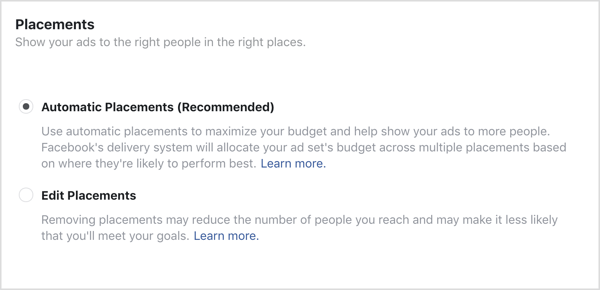
Is Allocating Ad Spend via Automatic Placement in Your Best Interest?When you advertise through Facebook’s platform, you have four major placement options: Facebook, Instagram, Audience Network, and Messenger.
Many small business owners rely on Facebook’s (recommended) automatic placement feature to split their advertising budget among these placements.
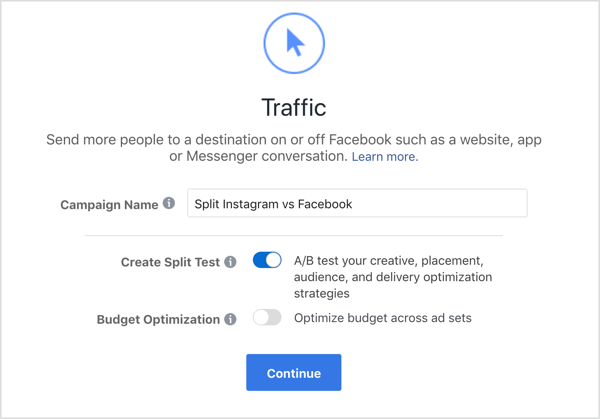
While most businesses will see good results from this option, you may be wondering if a larger spend on Instagram will deliver better results. Or perhaps you’re just wondering if Instagram ads will work for you. So how do you find out? Run a split test on one campaign with two identical ad sets and split the ad spend 50/50 between Facebook and Instagram. The Facebook split test feature lets you quickly and easily test different versions of your ad campaigns to see what works and what doesn’t, so you can make data-backed decisions to improve future ad campaigns (rather than relying on your gut). Ready to get started? #1: Set Up a Split Test for Facebook and Instagram Placement PerformanceFirst, open Facebook Business Manager or Ads Manager and create a new campaign. Note that the Facebook split test feature works with the following 10 campaign objectives: Traffic, App Installs, Lead Generation, Conversions, Video Views, Catalog Sales, Reach, Engagement, Messages, and Brand Awareness. For this example, choose the Traffic objective. After you choose your objective, type in a name for your campaign and turn on the Create Split Test feature, which is right below that. Then click Continue to move forward.
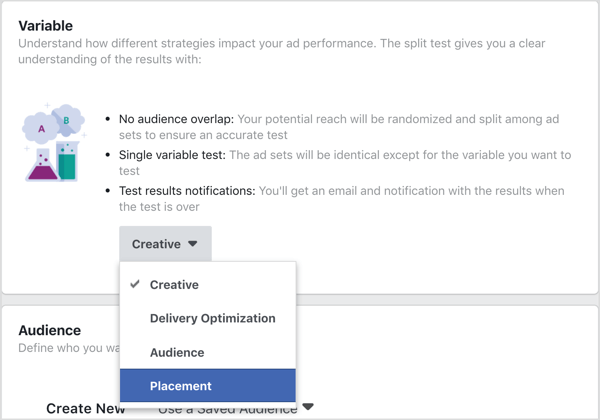
As you work your way through creating the ad set, you’ll see the Variable section. Click the What Do You Want to Test drop-down menu to reveal four options: Creative, Delivery Optimization, Audience, and Placement. For this Facebook split test, choose Placement.
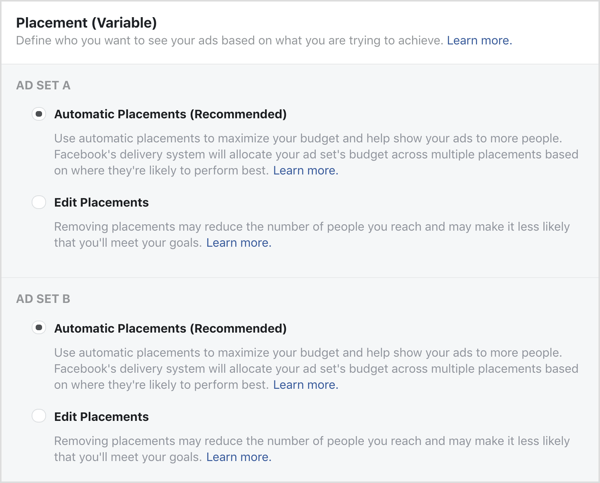
After you make your selection, Facebook automatically builds two separate ad sets that you can modify to focus on a specific platform placement.
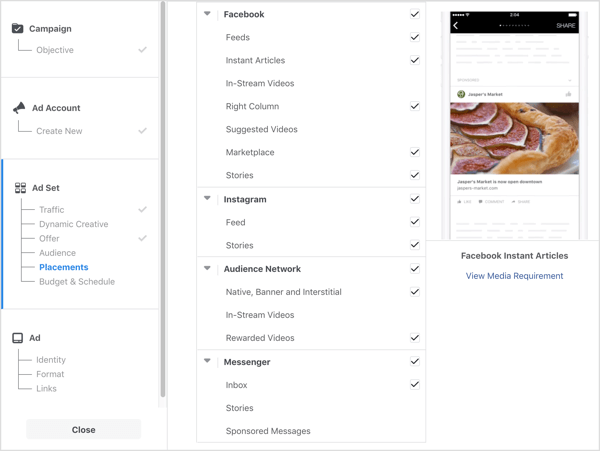
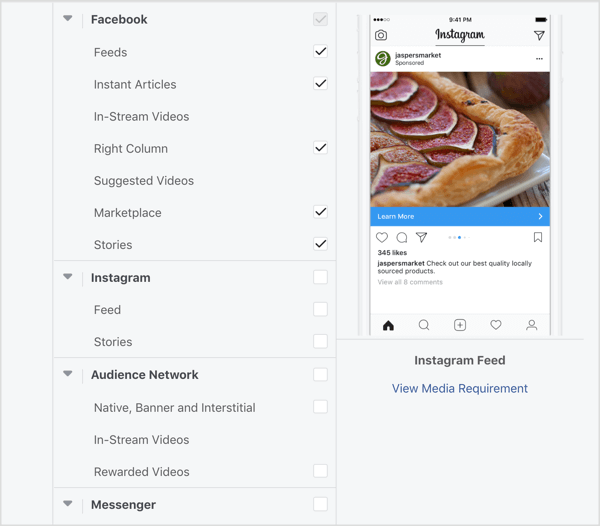
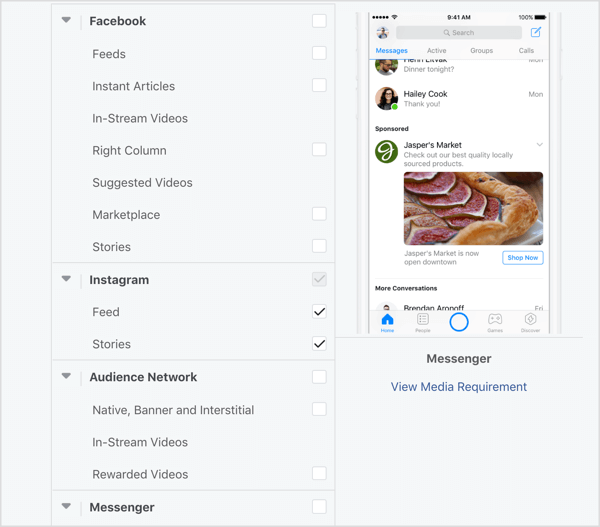
In the Ad Set A section, click the Edit Placements option button to reveal all of the available placement options. Deselect Instagram, Audience Network, and Messenger. This will ensure the ad will be served only to Facebook Feeds, Instant Articles, In-Stream Videos, Right Column, Suggested Videos, Marketplace, and Stories.
Now scroll down to the Ad Set B section and click the Edit Placements option button. This time deselect Facebook, Audience Network, and Messenger. This will ensure the ad will be served only to the Instagram Feed and Stories placements.
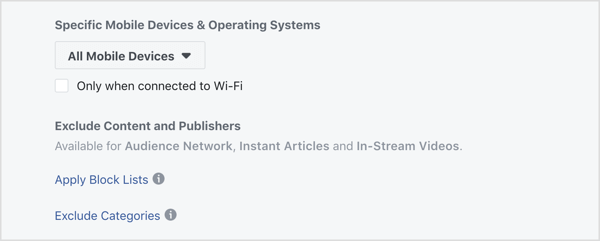
If you change any settings under the Mobile Devices & Operating Systems section or use any specific exclusions, make sure you extend identical designations or exclusions across both ad sets.
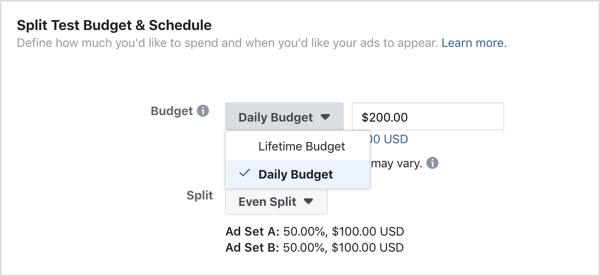
Now fill in the Audience section details and the Delivery Optimization section of the ad set. When you get to the Split Test Budget & Schedule section, you’ll see two options: Lifetime Budget and Daily Budget. For this test, choose Daily Budget.
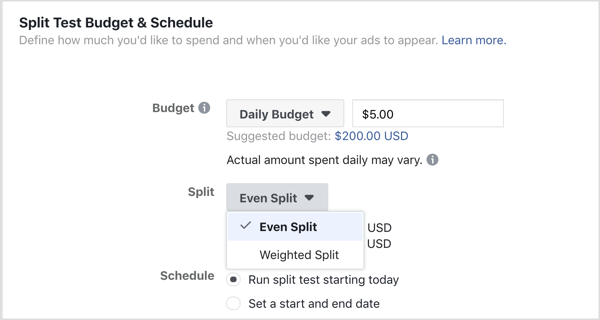
You’ll see that Facebook automatically suggests $200 for the daily budget. Because you’re trying to learn where to allocate a substantial budget, you don’t need to spend a massive amount of money here. Start with a small daily budget of $2-$5. Next up is the split variable. You’ll see two options in the Split drop-down menu: Even Split and Weighted Split. Choose Even Split. This setting ensures that 50% of your budget will be allocated to ads running on Facebook and 50% will be allocated to ads running on Instagram.
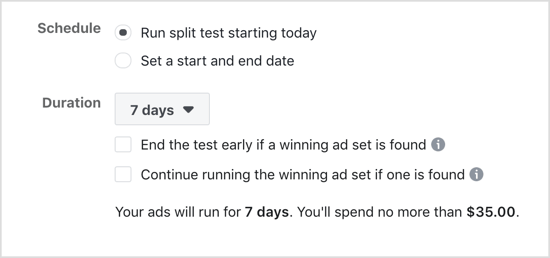
For the schedule, you have two options. If you choose the Run Split Test Starting Today option, select 7 Days from the Duration drop-down menu.
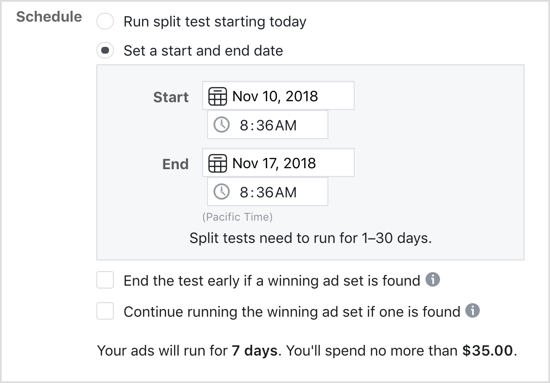
If you opt for the Set a Start and End Date option, set a 7-day date spread.
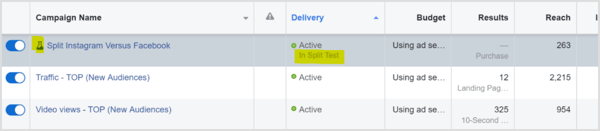
The duration of your experiment will vary based on the unique characteristics of your audience, but you should see results in 4-7 days. Now complete your ad creative and begin running your ads. A note on your individual ads: Whenever you run a Facebook split test, it’s important that you test only one variable at a time. Because you’re testing the performance of placement, you need to be sure that you run identical ad creative in both ad sets. Any difference in imagery, ad copy, or call to action will muddy the results. #2: Analyze the ResultsAs mentioned above, I recommend that you run your campaign for a week. At the end of that time, you can check the results. Open Facebook Ads Manager and click on the Campaigns tab. Look for a little bottle icon next to the campaign name to quickly find your split test campaign.
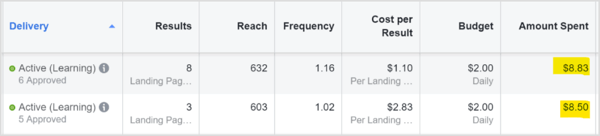
Click on the campaign name, and then click on the Ad Set level to reveal and compare the results. #3: Use Performance Results to Allocate Your Budget Between Facebook and InstagramWhen you look at your ad results, verify that the ad spend is relatively equal across both platforms.
Then you can move on to analyzing reach and frequency. All things being equal, look at the cost per result metric to help you decide how to split your budget between placements:
If a clear performance anomaly isn’t discernible, consider extending the test for another 7 days. ConclusionUnfortunately, there’s no obvious answer to the question, “How should I split my ad spend between Facebook and Instagram placements?” For some businesses, splitting the budget in half works great. Others may find they still need to spend up to 75% of their budget on Facebook and 25% on Instagram. Regardless of the type of business you own, split testing is the best way to find out what works best for you. What do you think? Will you test placement performance for your ads on Instagram and Facebook? Share your results with us in the comments below. More articles about Facebook ads: Social Media via Social Media Examiner https://ift.tt/1LtH18p November 12, 2018 at 05:06AM
0 Comments
Leave a Reply. |
Amazing WeightLoss Categories
All
Archives
November 2020
|

 RSS Feed
