
|
https://ift.tt/2HFyJhT
How to Host a Facebook Watch Party in Your Facebook Group https://ift.tt/2H8Lqk2
Have you heard of a Facebook watch party? Now your group can watch and comment on videos together. In this article, you’ll discover how to run a Facebook watch party inside your Facebook group. How to Host a Facebook Watch Party in Your Facebook Group by Lucy Hall on Social Media Examiner.
What Is a Facebook Watch Party?Facebook Watch Party is a new feature for groups that allows admins to hold a live screening of pre-recorded videos that are publicly available on Facebook. Group members can all watch and comment on the videos at the same time to create a shared viewing experience.
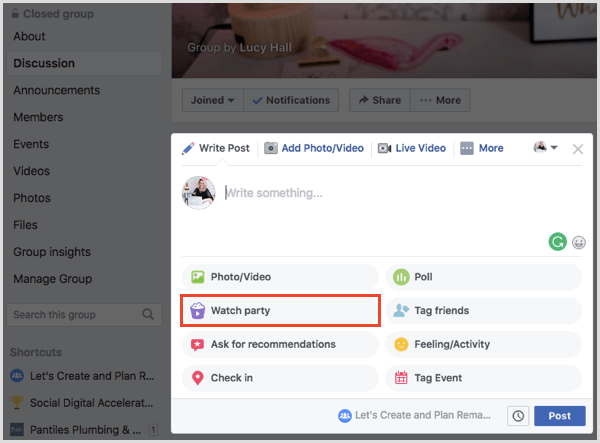
Sound like fun? Here’s a step-by-step guide to holding a watch party in your own Facebook group. #1: Create a Watch Party PostTo see whether you have the option to host a watch party, open the page for your Facebook group on desktop and start a new post. You’ll find the Watch Party option among the other options such as Photo/Video, Poll, and Live Video.
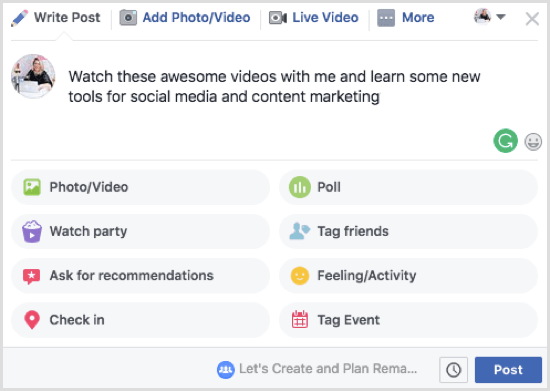
If you plan to share a series of videos on a particular topic, make that clear in the description box. This information will help group members decide if they’d like to join in. Tip: To generate interest prior to your watch party, post in your group announcing when it will take place, and/or promote your watch party outside the group. This promotion may lead to more watch party viewers.
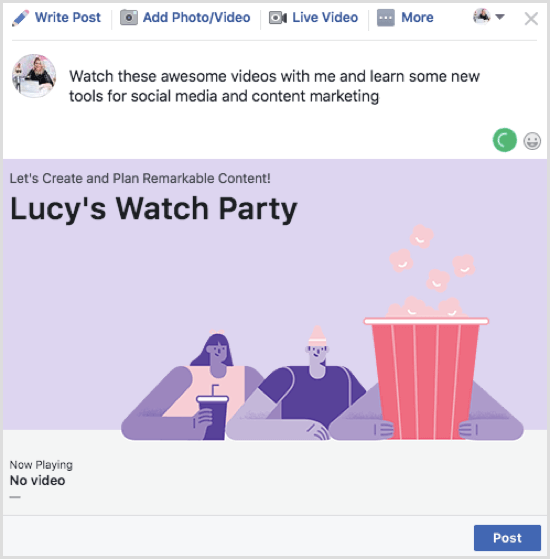
It may look like you’re doing a regular update, but before moving to the next stage of starting your watch party, you need to publish the update. You’ll see the pop-up window change to say [your name] Watch Party. Click Post.
You’ll then be greeted by a large black screen that says, “Your watch party is about to begin.”
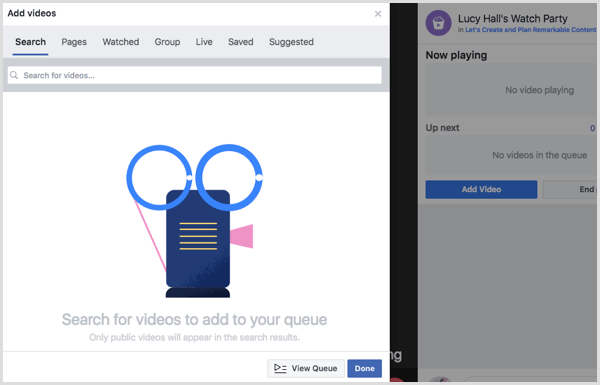
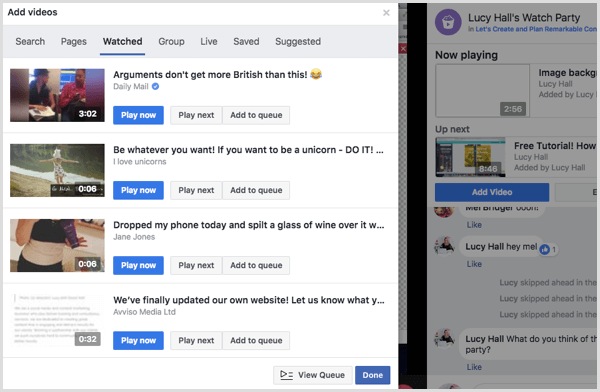
#2: Select Videos to WatchNow you need to choose videos to add to your watch party queue. First, select a video source on Facebook. These are your options:
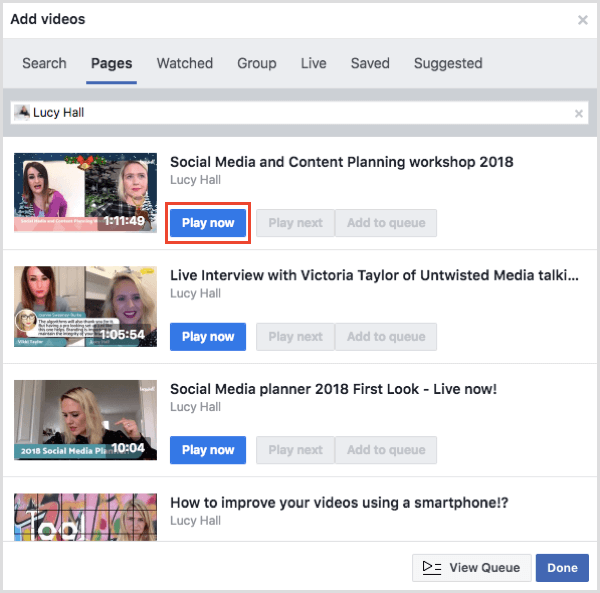
After you choose your video source, you’ll see a list of videos that have been uploaded or viewed by you (depending on which option you choose), in order. For this example, I clicked Pages to use videos from a Facebook business page. Next, choose the first video for your group to watch and then click the blue Play Now button to start it. The video will begin playing immediately in your watch party.
After you choose your first video, the options Play Next and Add to Queue become clickable. Click these buttons to add more videos to your queue for watching with your group. #3: Control Video PlaybackOnce your watch party is live, you can add more videos to the watch party queue at any time. You can also fast-forward through parts or skip videos altogether. Remember that when you fast-forward, viewers are seeing what you see. When you skip a video entirely, viewers get a notification that you’ve skipped content. If you want to change the video currently playing, click Add Video.
Then choose another video from any of the sources mentioned above and click Play Now.
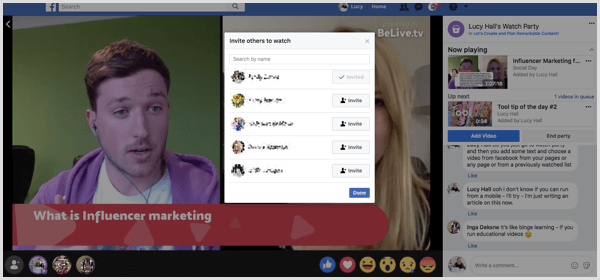
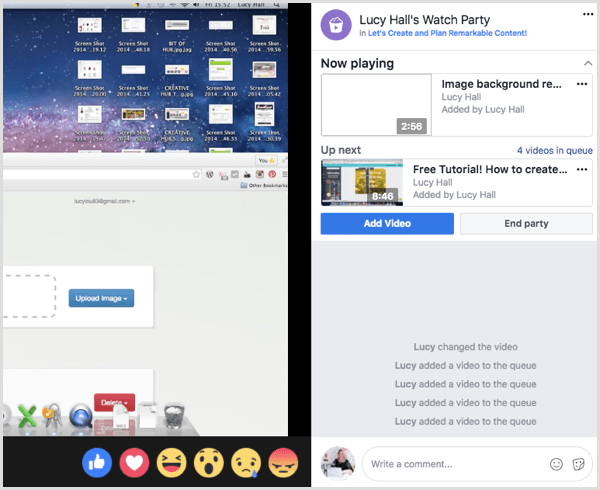
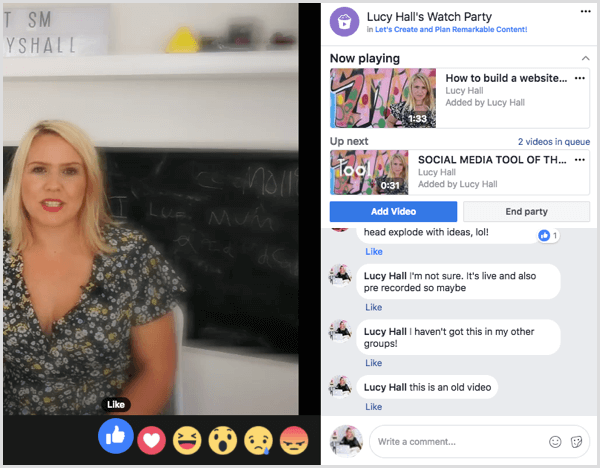
#4: Chat With Viewers in Real TimeOn the right side of the video, you’ll see a panel that shows your watch party playlist at the top. Below that, you’ll find options to add more videos and a chat/comment area. Viewers can comment on the video here in real time as you all watch together. You can also comment and reply. Viewers can react to the video by clicking one of the reactions at the bottom of the screen. Although you can’t create the watch party on mobile yet, group members who are viewing from a mobile device can comment and react accordingly.
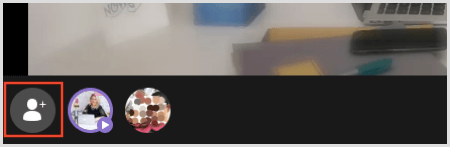
#5: Invite Group Members to Watch With YouIt’s a party and parties are best with other people! In the bottom-left corner of the screen, you can view which group members are in the party with you. You and your guests appear along the bottom in small avatar circles. Hover over an avatar to see the name of the participant. If you want to invite people to join your watch party, click the avatar circle in the far-left corner.
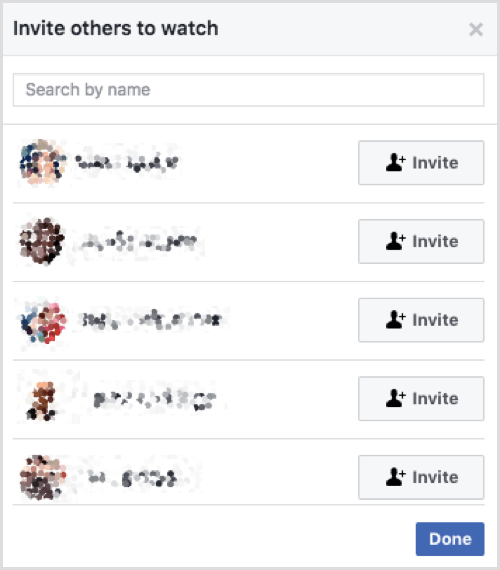
In the Invite Others to Watch window that appears, select which group members you want to invite to your party. If you see a group member you want to join, click the Invite button to the right of their name. That member will then receive a notification inviting them to join the watch party. You can also use the search box at the top of this window to find specific people from your community to join in.
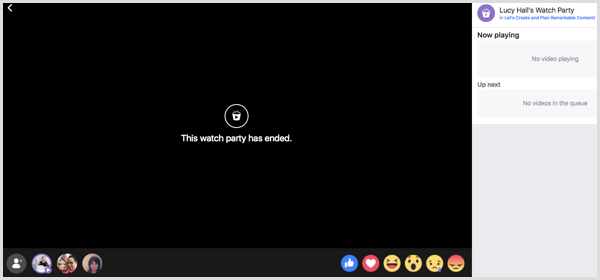
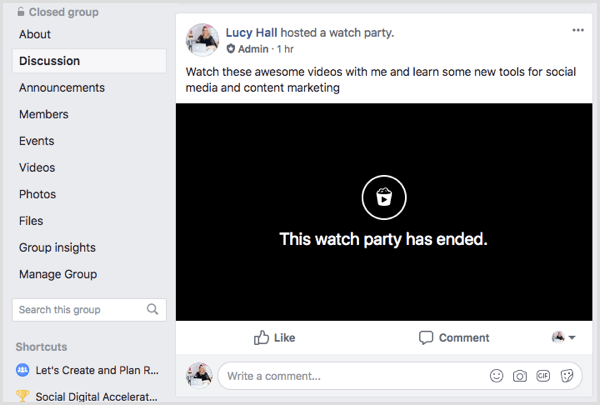
#6: End Your Watch PartyWhen it’s time for the party to close, click End Party on the right side where your playlist appears. You’ll then see a black screen saying, “Your watch party has ended.”
At the end of the watch party, you’ll be able to see the attendees, but you can’t see any of the comments. So if you’re asking people to share information, ask them to message you privately because the comments or videos won’t be available for reading or watching later.
Back To You What do you think? Do you have the Watch Party option in your group yet? If so, do you plan to host a watch party in your Facebook group in the near future? Please share your thoughts in the comments below.  Social Media via https://ift.tt/1LtH18p April 17, 2018 at 05:08AM
0 Comments
Leave a Reply. |
Amazing WeightLoss Categories
All
Archives
November 2020
|

 RSS Feed
