
|
https://ift.tt/3d9HiR1
9 Tips for Staying Productive While Working from Home https://ift.tt/2TKwl0v In what seemed like the blink of an eye, millions of office-based employees had to start working from their homes. The COVID-19 pandemic meant that most offices were closed, and whenever possible, people began having to work remotely. Now, while working from home might be the dream, it takes self-discipline and organization to be able to do it effectively over a long period of time. Ask anyone who works from home full-time—it’s not all working in your pajamas and getting out of bed later. Once the novelty has worn off, you need to put some structure in place to ensure that you are still working productively and using your time efficiently. Here are some tips to make working from home a success. 1. Create a Dedicated WorkspaceYes, you could lie on your bed with your laptop or sit on the couch for the day, but that doesn’t mean that you should. It doesn’t put you in the right headspace—not to mention all the physical issues it can cause for your back, neck, and posture. Create a space that’s just for working in. If you have a spare room you can use for working, great. If not, a dining table or personal desk will work too. You want to create both a physical and mental space that’s conducive to working. 2. Plan Your Day, and Stick to ItIt’s easy to get caught up in the convenience of being at home. After all, it’s great for work-life balance; but you need to stick to a schedule to make sure you protect that balance. A chaotic day where you’re constantly distracted, working intermittently, and not being productive could end with you putting way too much extra time in after hours just to keep up with your workload. Plan your schedule, tasks, and priorities each day, and stick to them. 3. Take Care of YourselfMany people find that once they start working from home, they become more sedentary. Slipping into unhealthy habits is really easy when you’re so close to your own refrigerator or can order takeout at the press of an app. Make your health and wellbeing a priority. Being at home can give you a great opportunity to practice making fresh, healthy meals. Prepare healthy meals and snacks in advance so that you’re not reaching for convenience food during your lunch break. 4. ExerciseMovement has not only physical benefits, but mental ones, too. Set aside exercise time during your day as you would schedule an important meeting. Since you’re saving time on commuting, one idea to try is doing a “virtual commute.” Every morning, before you start work, leave your house and walk or run a circuit around your neighborhood in place of your commute to the office. A standing desk is also great for counteracting the aches and pains that sitting in front of a screen for long periods produces. You can even find a small unit that will stand on top of a desk or table. 5. Know When to Switch Off for the DayOnce your work is done, leave your home office, shut your laptop, and concentrate on enjoying your free time. Setting and sticking to regular working hours instead of working on-again and off-again throughout the day helps keep your work from intruding into your personal time. 6. Make Sure Your Tech Is Up to the JobWhen it comes to remote working, you’re only as good as your internet connection. If your home connection is unstable, or you’re on a limited data plan, then you’re going to need to make sure you have a suitable connection. This can mean using WiFi amplifiers, updating your home router, or changing services altogether. For the rest of your IT needs, your employer should provide you with whatever equipment you need to do your job remotely. This could be in the form of laptops. VoIP and conferencing equipment, headsets, etc. Familiarize yourself with your company’s tech policy to make sure you are accessing company data securely. You’ll also need to know what to do if you have any technical problems. Do you need to contact your employer’s in-house team, or are they used a Managed Service Provider to run their remote setup? Know who to contact if you run into issues. 7. Eliminate DistractionsWorking from home can increase your potential for getting distracted. Some distractions you may not be able to do anything about (kids, for example), but others, you can. It might be tempting to put the TV on in the background while you work—but before you know it, you’re three episodes into Breaking Bad and haven’t gotten anything else done. It’s tempting to take care of household tasks too. Don’t spend your day catching up on dishes or laundry. If there are things you need to do, then schedule it in before it becomes a major drain on your productivity. If you find that other responsibilities are tugging on your attention, write a list of the things you need to accomplish after work is done so you don’t forget them. Doing a mental brain-dump can help assuage your worries by promising yourself that you won’t forget and will get other essential things done. 8. Take a BreakIt can be easy to lose track of time, especially when you don’t have the opportunity to walk around the office and talk to colleagues. If you’re prone to losing track of time, set an alarm on your phone or your laptop to remind you to step away from your screen for a few minutes every so often. 9. Get Some Fresh AirDon’t stay cooped up in the house all day. Get outside, even if it’s just for a few minutes before you start working or during one of your scheduled breaks. It’s great for lowering stress levels and resetting your mind! Use these tips to be more productive and maintain a better work-life balance while working from home! The post 9 Tips for Staying Productive While Working from Home appeared first on Social Media Explorer. Social Media via Social Media Explorer https://ift.tt/2onGYog May 27, 2020 at 11:10AM
0 Comments
https://ift.tt/2X7azGk
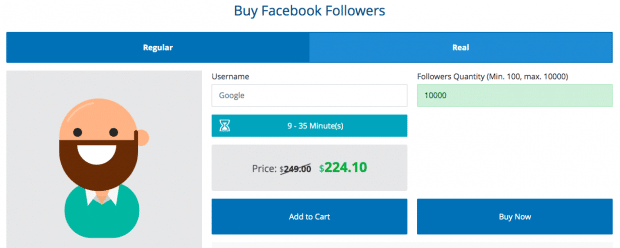
Facebook Automation Tools, Software, and Tips to Save You Time https://ift.tt/2TK8XjB There are a lot of things humans are better at than robots: Threading a needle. Roller skating. Kissing (for now). But in certain instances, technology has us beat. Take Facebook automation tools and software, for example. Facebook automation software is designed to automatically handle the tedious maintenance of your brand’s Facebook page more efficiently and effectively than even the best social media coordinator could. Of course, with great power comes great responsibility, as Spiderman’s Uncle Ben and also RuPaul have so famously said. Just because you can automate almost every Facebook action, doesn’t mean you should. Good Facebook page automation is about streamlining the administrative stuff so you can focus on what really matters: serving up great, engaging content to your followers. Read on for the do’s, and don’t’s of optimizing Facebook automation responsibly to make your social presence the most human it can be. Table of contentsWhat is bad Facebook automation?What is good Facebook automation?Facebook automation tools to help you save timeBonus: Download a free guide that teaches you how to turn Facebook traffic into sales in four simple steps using Hootsuite. What is bad Facebook automation?Bad Facebook automation is anything that looks or feels spammy. Even when done with the best of intentions, these behaviours can get you blocked by users, or worse, the network all together. Buying followersSure, it’s a common practice (even Rhianna has done it!) but buying followers can get your account in big trouble with Facebook. Auditing tools can spot artificially inflated accounts in seconds. When 1,000 new “fans” start following you in one go, that can be a bit of a red flag… as can the fact that they don’t exactly “engage” with your content. Facebook has an interest in making sure its site is full of real people having real conversations. They’re cracking down on automated followers now more than ever. In fact, buying followers is actually a violation of the terms of service. Not only could your expensive fake friends be deleted, your account might be suspended all together. Is having an inflated number of followers worth the demise of your brand?
Source: Instafollowers A good social media rule of thumb: if it would be sad behaviour at a birthday party, it’s probably sad online too. Earn your friends, don’t buy them. Cross-posting automated messages from other networksWhat works for a Twitter post doesn’t always work on FB. I totally get that doubling down on a post saves time,. But when you automate cross-platform sharing, you risk a sloppy post that can look carelessly spammy. Inappropriate hashtags, weirdly cropped photos or broken links aren’t exactly the kind of thing that inspires engagement. This post from a fashion brand Fate Clothing was cross-posted from Instagram to Twitter, and cuts off mid-way. And what, Fate Clothing? And what?!?!
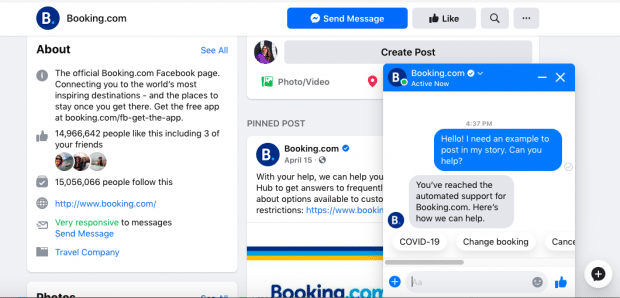
Automating likes and commentsLetting automation handle comments and likes is like buying a $5 Starbucks card for your partner for your wedding anniversary. It’s lazy and thoughtless (and maybe even a little dangerous). This is the part of Facebook experience where it’s essential to be hands-on. If you give the robot free reign to like any post that mentions you, what happens when someone is complaining about your brand… or affiliating it with something unsavoury? Comments, likewise, should be intentional and specific. Your brand’s reputation is at stake with every post you make, after all. Automating DMsSee above. Nothing says “please block me” quite like a generic spam letter popping up unprovoked in your Facebook messages. What is good Facebook automation?The most positive, legitimate reason to use Facebook automation is to save time so that you can focus on what actually matters — creating great content and genuinely connecting with your community. That might include… Scheduling messagesCrafting messages specifically for Facebook to schedule for later is a legit timesaving tactic. While automating what you say in a Facebook post might be questionable, automating when you post is absolutely a smart move. Keeping up with the ideal posting schedule can be a challenge for sure. A little advance planning—especially when you’re in the creative zone!—can go a long way to ensure you’ve got the right content going up at the right time. You can do this on Facebook itself, or with a third-party scheduler like Hootsuite (we’d be remiss not to mention it.) Keep in mind that scheduling is only possible with a Facebook for Business Page right now. Saving replies for frequently asked questionsHaving pre-composed responses ready to roll for common questions can be highly efficient. (Plus, it’s a great way to ensure that your conversations with customers stay on-brand.) Of course every fan or customer is a unique and precious angel who deserves your utmost, individualized attention. But a pre-written response can help them get the information they need quickly, so it’s really a win-win. For example, if you’re a restaurant and you receive approximately 1,000 messages per day asking if you do take out, this could be a useful tactic for you. Using search streams to find relevant users, topics, and contentIf Archie has taught us anything by trying to date both Betty and Veronica at the same restaurant on the same night, even with a pair of rollerskates, you can’t be everywhere at once. Get a little help keeping track of all the news you need--including auto social searches by keywords, topics, hashtags and users—with automated search streams. For example, you could set up one stream to monitor your competitors’ posts, one for a branded hashtag created by your business, and another for influencers that you work with regularly. Repurposing content from other networks for FacebookTracking all of your social platforms via a third-party social media management app is a way to quickly and easily assess which posts are gaining traction out there in the world… and maybe find some inspiration for a Facebook post along the way. Of course, “repurposing” doesn’t just mean copy and paste from your Instagram feed. (See our post on best practices for cross-platform posting here.) Facebook is a unique beast. Audiences here typically want a story, something inspiring and educational. Automation in this case is about helping you identify topical trends so that you can build from there and customize a story specifically for your Facebook crew. Using a chatbot for initial customer service interactionsSimilar to having saved replies for FAQs, Facebook’s automated chatbots can help handle quick-and-dirty interactions so you can save your personal touch for more complex queries. People exchange 2 billion messages with businesses via Facebook Messenger each month. That’s a lot of potential conversations: why not plan out automated Facebook message replies to filter out easy-to-automate requests like delivery tracking or appointment booking? When used to supplement human interaction, not replace it, AI chatbots can improve service times and increase customer satisfaction. Dream team!
Source: Booking.com Facebook page A/B testing adsWant to make the most of your social media spend? Automate the tracking of your social media A/B testing. You’ll get data on the fly for your slight variations, so you can adapt and react in the moment. If the stats are saying that a face-swap photo of your CEO and your mascot is trending, boost that post! With that kind of clickthrough rate, who would dare fire you?! Automating regular performance reports“What can’t be measured can’t be managed.” It’s something neither Uncle Ben nor RuPaul has said (that I know of), but that doesn’t mean it’s not true! Analyzing past performance is key to improving your future performance. 9 Facebook automation tools to help you save timeThink of this list as your Facebook automation toolkit. Bonus: Download a free guide that teaches you how to turn Facebook traffic into sales in four simple steps using Hootsuite. Get the free guide right now!The best Facebook automation tools and software are ones that free up your time for more important things. And in some cases, achieve things — like in-depth data collection and analysis — that would be downright impossible without the help of AI. HootsuiteBesides allowing you to bulk upload and schedule up to 350 Facebook posts in advance, Hootsuite can also help you automate a bunch of other Facebook management tasks. You can curate custom streams for social listening, and get automatic reporting. Plus, with the content library, you’ve got access to high-quality, on-brand content in seconds to help you create new posts quickly. You can also boost your top performing content automatically with Hootsuite. Want more views? They’re just a few clicks away. Hootsuite InboxWithin Hootsuite, you’ve got access to Inbox, a super helpful tool for managing all your social conversations (private and public!) in one place. Facebook, LinkedIn, Twitter, the whole gang is here. Tag or categorize messages, assign responses to your team, and most importantly, release that constant anxiety that you’re letting something fall between the cracks. AdEspressoAdEspresso can auto-generate a variety of ad combinations based on the elements you’re testing, or you can test a preset combo. It’s pretty much the ultimate A/B testing tool for your Facebook ads. Here, you can also select single or multiple audiences for trying out your sweet new ads. Whatever way you go, it’s a real power player. Facebook Business ManagerThis is a “one-stop shop” for handling your business assets — the place for tracking and reporting on Facebook ad performances. Here, you can also give access to partners or coworkers. ChatfuelIf you’re chatbot curious, just integrate Chatfuel to automate your Facebook inbox. Bonus: it’s got a drag-and-drop interface: no coding required. MentionlyticsMentionlytics is like the ultimate gossip, but in a good way: the monitoring engine scans the world wide web (including news sources and blogs) for instances of your brand, competitors or keywords and pulls them right into your Hootsuite dashboard. BrandFortThink of BrandFort as your bouncer… the muscle to shut down the haters. The AI-based content moderator detects and hides public complaints, hate and spam. It takes “positive vibes only” very seriously. MagentoThe Magento Facebook Product Catalog Synchronization plugin pulls catalog products onto Facebook, automatically formatted neat-and-tidy for the platform. IFTTTGet your various accounts, platforms and technology to play nicely together with the help of IFFT (“If This Then That”). It’s programming stripped down to bare bones: just build a “recipe” of chain reactions that will kick off with a single action.
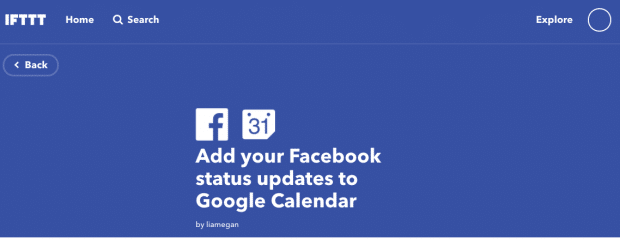
Source: IFTTT For example, you could program your Twitter profile pic to change whenever you update your Facebook one. You could also archive all your Facebook status updates to Google Drive if you are a nerd who only gets satisfaction from looking at your work in a spreadsheet. (There are dozens of us! Dozens! Used responsibly, social media automation can help you make the most of Facebook. Used irresponsibly, you’re treading into dangerous spammer territory. So go forth, and be the brand you wish to see in the world. Use Hootsuite to save time and automate the busy work of engaging your Facebook audience. Schedule posts in advance, keep tabs on your competitors, automatically boost top performing content, and more. Try it today. The post Facebook Automation Tools, Software, and Tips to Save You Time appeared first on Hootsuite Social Media Management. Social Media via Hootsuite Social Media Management https://ift.tt/1LdunxE May 27, 2020 at 08:45AM
https://ift.tt/2M5NxJH
After Twitter fact-check, Trump threatens to regulate or close down social media platforms https://ift.tt/2TIExhP Once again, Trump has doubled down. Following the addition of a fact-checking warning label added to his tweet about mail-in ballots, Trump took to the platform yet again to denounce it. In what may be his strongest words to date against a service that has largely given him free rein to this point, the President suggested that social media services would have to be regulated or shut down. Republicans have long held that social media sites harbor an anti-conservative bias. “Republicans feel that Social Media Platforms totally silence conservatives voices,” he tweeted. “We will strongly regulate, or close them down, before we can ever allow this to happen. We saw what they attempted to do, and failed, in 2016.” That last bit appears to be a reference to the role platforms like Twitter and Facebook played in the 2016 election. Trump then went on to reassert earlier claims about mail-in ballots, accusing a push for easy access to voting amid a pandemic of being a “free for all on cheating, forgery and the theft.” It was precisely those claims that earned him a Twitter fact-checking label in the first place. As of this writing, however, no such label has been added to the new tweet sent a little after 7AM ET this morning. It’s been a busy couple of days for Trump on his favored social media platform, following the long holiday weekend. Last night he accused the service of “stifling free speech,” in spite of Twitter’s long-standing reluctance to either delete tweets or ban Trump over perceived TOS violations. This morning the President took to Twitter to once again tie a cable news morning host to an old conspiracy theory about his late-wife host and declare “Obamagate” worse than Watergate. Social Media via Twitter – TechCrunch https://techcrunch.com May 27, 2020 at 08:06AM
https://ift.tt/2A9jiPo
How To Create & Manage Your Monthly Instagram Strategy https://ift.tt/3c5RgS5 Do you struggle coming up with new post ideas for your Instagram page? If you’ve decided to use Instagram to market your business, you know it’s just a matter of time until you’ll start repeating yourself. When you can’t come up with an idea, you’ll end up wasting time and feel anxious. And by then it might be too late. Your followers have already started losing interest. So what can you do? There’s gotta be a better way to post on the app. And there is. Many social media markets have overcome this problem by having a strategy in place. Knowing exactly what to post ahead of time, can help you save time and stay organised. As a small business owner, you need that flexibility so you can focus your efforts on more important parts in their business. In this post, I will show you exactly how to build a monthly strategy in order to make the most of your Instagram presence. We’ll start from research, show you how to create and schedule content ahead of time and finally, teach you how to use Instagram statistics to monitor your progress. But before we jump into the strategies, how do you know whether Instagram is the best platform to market your business? If you’re a small business owner you have limited time. The last thing you wanna do is hop onto another social media platform that may turn out to be a waste of time you could spend growing your business. To help you decide if Instagram is for you, ask yourself this:
Now let’s move on to the exciting part! Want to build a successful marketing plan for Instagram? Let’s talk STRATEGY! How to Create a Monthly Instagram Strategy Step 1: Know Your Goal with Instagram Start developing your Instagram strategy by writing down at least one goal for Instagram. Think of what exactly do you plan to achieve using Instagram over the next 6 months? Without a goal in mind, you’ll burn out very fast and probably give up on your marketing efforts before you see any results. Many marketers choose to use Instagram for one of the following reasons:
Then, pick a goal that is in line with your overall business goal. This will make it easier for you to see the value of Instagram as an integrated marketing tool. Here are some examples of goals that you can use for inspiration: 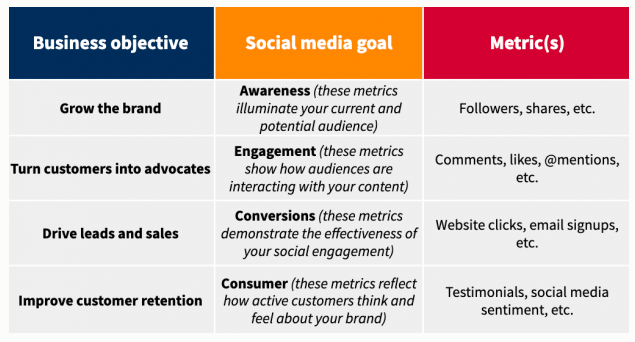
Source: Hootsuite Let’s say your overall business goal for the next 6 months is to get more leads from social media. Then, set an Instagram goal that can help you work towards achieving this big business goal. You can decide to focus your Instagram efforts into directing traffic to your website. So, with a clear goal in mind, now you can go ahead and plan your content. Business goal: Increase the no. of new customers from social media Instagram goal: Increase the website clicks by 30% Step 2: Create a Monthly Content Plan So, now that you have a clear goal in mind, you can go ahead and plan your monthly content. You know you can’t just post a series of photos and expect your clients to engage with you. So, what are you going to post then? Any good content strategy should start with a content plan that supports your Instagram goal.
Now that you understand that the content you post must be intentional, let’s create your content plan! For that, you’ll need the following:
#1. Find inspiration The thing about Instagram marketing is that you don’t have to reinvent the wheel. While your goal should be to keep your branding unique and authentic you can always look for inspiration. One of my favourite ways to get inspired is to look at top brands and influencers. These companies hire experts to create and manage their content and it’s clearly working for them. Below is an example of an Instagram feed that combines different post types. There’s a good mix of graphics, photos and quotes that when put together tell a story. 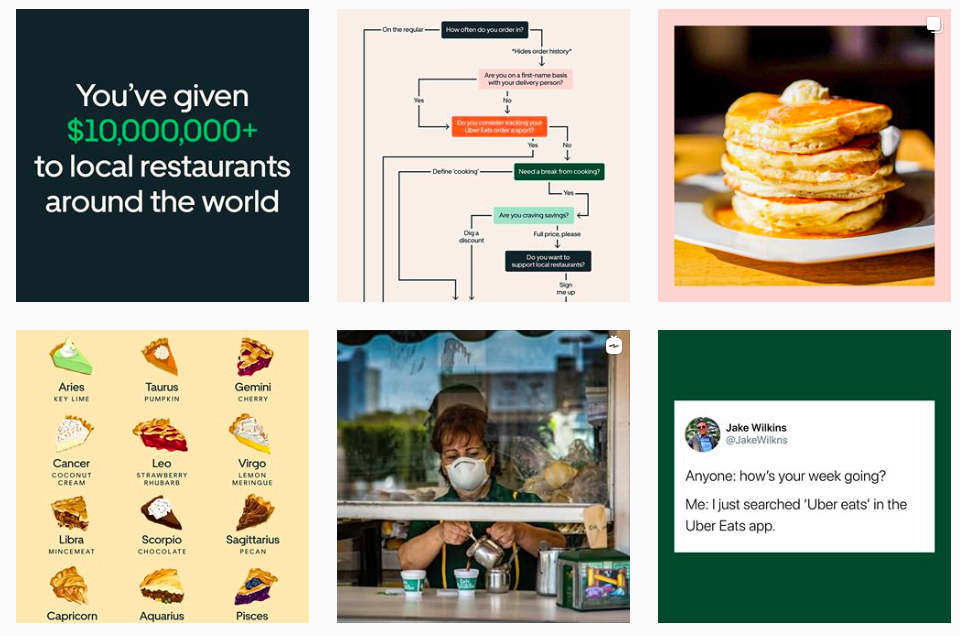
Source: @Ubereats You can also look at how famous brands write their captions. Notice how @guardian uses a friendly and casual tone that sounds as if a real person is talking. 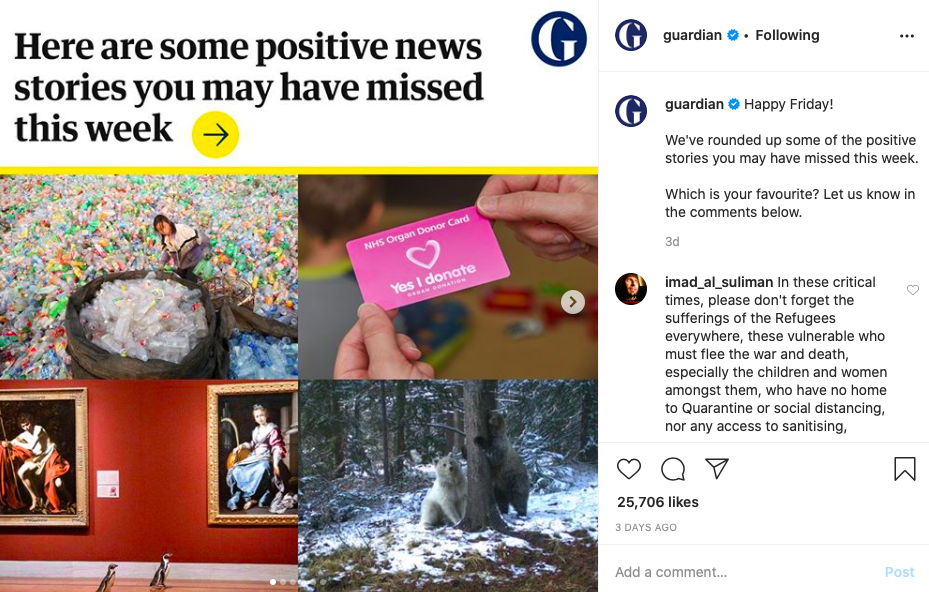
#2. Content Pillars (Topics) Start by defining 3 – 4 content pillars that are specific to your industry. Once you have your main pillars (topics), it’s going to be much easier to come up with content ideas. If you’re running a travel agency, your content pillars can be:
#3. Content Types These are the content types you’ll be posting on Instagram. You want to ensure you’re posting valuable content for your audience. If not, they won’t engage. So the best way to make your followers interact with your posts is to create content that matches with the buyers’ readiness. For that, each post should either:
Pro Tip: Not all customers are in the same stage of the buyer journey. So you should rotate your content types to ensure you’re reaching a broader customer base and meeting your customers at their readiness level. #4. Post Formats Create a colour coding system for your post formats. Think of what types of formats your audience will engage more on Instagram. Assign a colour code for each of the following post formats:
#5. Create a Monthly Content Plan It’s time to put it all together in a single worksheet that’s going to help you create and manage content more effectively. Start by creating a new worksheet. In the first column on the left, list your 3 – 4 content pillars as individual rows. Topic 1 (eg. travel destinations) Topic 2 (eg. travel tips) Topic 3 (eg. expat living) In the 2nd, 3rd, 4th and 5th columns write the 4 content types: educate, entertain, inspire and convert as a header. Finally, create colour codes for your content formats. Once you’re done, the worksheet should look something like this: 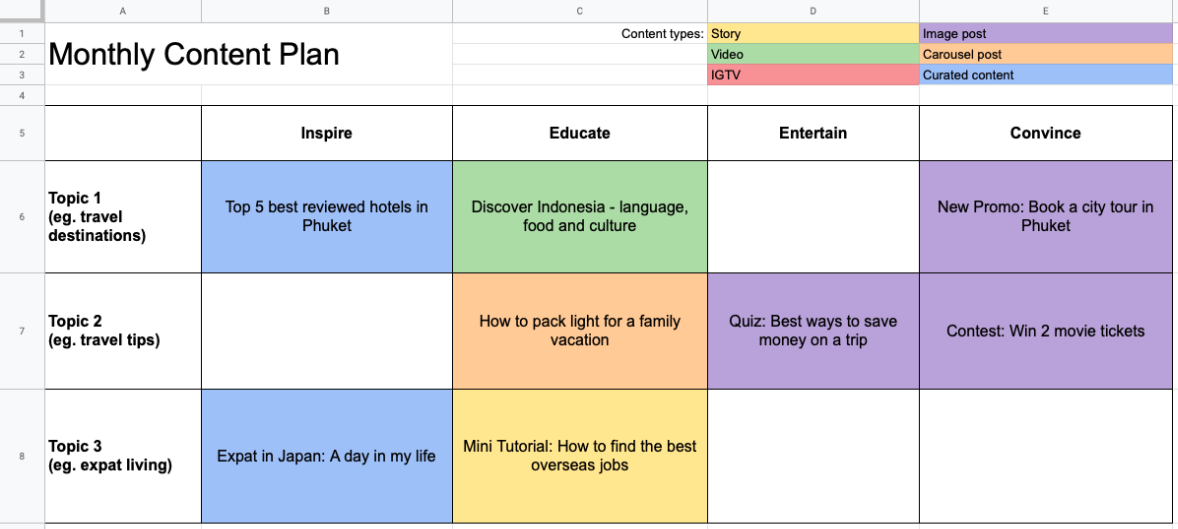
#6. Create a Posting Calendar On a separate sheet, create your posting calendar. In your posting calendar, you’ll assign each post a date and time. This will vary based on your industry, time zone and followers demographics. To find out your ideal times for engagement and comments you can check your Instagram app for more insights into your followers. 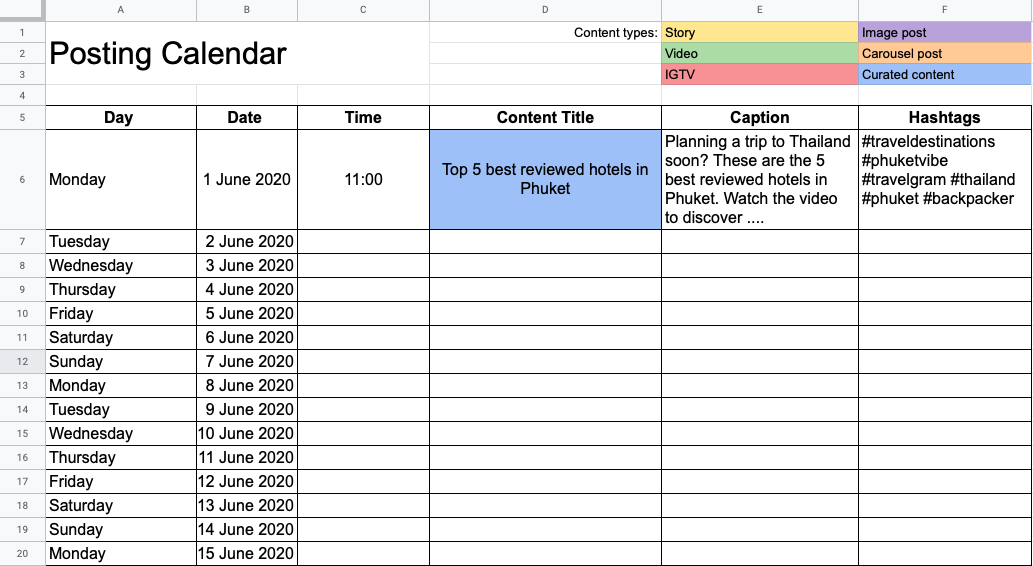
Once you’re happy with how your content calendar looks, you can go ahead and create your content. Each post should be complete with imagery, captions and a set of descriptive hashtags. As a final step, you can load your images and captions into a digital scheduling tool that will automatically post your content. Step 3: Monitor Your Monthly Progress So, now you may wonder “How do I know if my Instagram strategy is effective”? And that’s a good question. You don’t want to waste your time with something that isn’t working. To get the best picture of your monthly progress you should track relevant metrics. Here’s an example. Let’s say your Instagram goal is to increase website referrals by 30% over the next 6 months. The metrics you choose to monitor need to be able to measure your progress accurately. Instagram goal = Increase the website referrals by 30% in the next 6 months You can use the following KPIs to track your performance: KPI1 = % increase in the number of website clicks KPI2 = % increase in conversions from Instagram Once you’ve decided on your metrics, you can track them using an Instagram analytics app. Below is an illustration showing the number of website clicks. 
Source: Sharemyinsights Wondering where to find insights?
Now that you know how to create and manage your Instagram content strategy, you’re able to save more time and work efficiently. You don’t have to worry that you’ll run out of content ideas. By tracking your performance on a month-to-month basis, you’ll know exactly how effective your content is. If your content strategy isn’t working, you can take immediate actions and correct it before it’s too late. Name: Alle Ceambur Instagram: https://instagram.com/allebusinesscoachBio: Alle Ceambur is an expert in Instagram Marketing. Alle is a Content Marketing Strategist and Lead Writer on Share My Insights blog. She’s all about creating strategies and loves sharing her knowledge of content and Instagram marketing. She loves cappuccinos, has read all of Agatha Christie books – and is constantly on the lookout for her next adventure. The post How To Create & Manage Your Monthly Instagram Strategy appeared first on Social Media Explorer. Social Media via Social Media Explorer https://ift.tt/2onGYog May 27, 2020 at 06:22AM
https://ift.tt/2zzuAMM
How to Improve Instagram Post Engagement: 4 Tips https://ift.tt/2TJd3sf Do you want your Instagram content to perform better? Wondering how to optimize your Instagram feed posts? In this article, you’ll discover how to design and deliver Instagram posts that improve engagement on Instagram.
To learn how to optimize your Instagram posts for more engagement, read the article below for an easy-to-follow walkthrough or watch this video: #1: Instagram Feed Post Format HacksWhat type of Instagram post format works best: photos, videos, or carousels? Algorithmically, Instagram doesn’t have a preference of photos or videos. If your audience prefers videos, you’re going to want to create more videos. So you’ll have to look at your own metrics to determine that. But carousels are my little hack that I want you to try out—although I don’t recommend using this format all the time because carousels can be overwhelming for your audience. A carousel post allows you to share 2–10 photos or videos in one post that people can swipe through to see more content.
Why do I love carousels as a hack? It doubles the chance for exposure. If someone sees your post on the first image and doesn’t react to it, Instagram will show your post to them again the next time they log in, most likely with the second image. But sometimes the algorithm will identify another image in the sequence to show them that it thinks that person is more likely to engage with. So you have double the chance to get exposure and engagement. #2: Instagram Feed Post Content HacksThe next Instagram post component we want to look at is the actual creative you share. Here are a few tips to get better results from your content. Use Color StrategicallyThe color blue is proven to get about 20%–30% more engagement on Instagram. People react to the color blue. Have a blue sky, a blue product, a blue label, or blue clothing. Something in your image with a pop of blue can help boost engagement with that post.
Another favorite hack of mine is to use a very minimal, muted background in your image. Pair a light background—white or gray—with a bold pop of color to stand out in the Instagram feed. That will get viewers to slow their scroll and pay more attention to your content.
Show Live SubjectsPeople connect with people. Rather than showing your product on a box or a shelf, show somebody holding or using that product. You could shoot the image over someone’s shoulder. Or just show someone’s hand, or their feet propped on a chair. The moment you add a human component to your creative, your engagement goes up.
Another favorite is animals. Everybody loves cute animals—puppies, kittens, sheep, pigs, you name it. If you can incorporate an animal into your Instagram image, you’ll probably get more engagement.
Use Text Overlays in Instagram Feed Images to Provide ContextOne of my personal hacks is to overlay two or three simple words on my image to tell people exactly what will be in the caption. I do this for new Instagram features and updates. It immediately gets people to stop, pay attention, and read the caption, generating more engagement and impressions on my content.
#3: Instagram Feed Post Caption HacksThe next component of your Instagram content is the caption. Captions are super-important for driving conversions so make sure you put some thought into them. Become the Social Media Marketing Rockstar for Your Business
Meet your secret team that makes you look like a social media genius and empowers you to embrace change! We’re a genuine community of marketers from your friends at Social Media Examiner. And we’re here to support you. Think of us as your career insurance policy. We keep you focused on what matters. We make sure you won’t be left behind as the changes keep coming. Join the Social Media Marketing Society. Get access to monthly online training, expert support, and a thriving community of marketers who will empower you to succeed. CLICK HERE TO ENVISION A BETTER FUTUREMy first tip is to write a strong first sentence. Instagram captions are truncated in the feed with “… more” so people are really only reading the first two lines of your caption. If that doesn’t get their attention, they’ll simply scroll past your post.
Think of your first sentence like a great blog post title or email subject header. Use capital letters. Add emojis. Do something to draw people’s attention to that caption so they tap on the “… more” and read the whole thing. Additionally, consider adding hashtags to your caption. Hashtags are incredibly powerful for getting more exposure on your content. If you want to learn how to use hashtags strategically, read this complete guide to Instagram hashtags.
#4: Instagram Feed Post Branding HacksNow I’m going to share with you a couple of hacks to create consistently well-branded content that your audience will immediately recognize as yours when they’re scrolling through the feed. Use 2–3 Similar Filters in All of Your Instagram ImagesOne of my favorite branding tips is to pick only two or three Instagram filters when creating your content. Choose filters that are very similar and consistent across the color spectrum. If you pick a yellow-tone filter, keep all of your filters in that tone; the same goes with a blue-tone filter. If you’re creating food-related content, look at filters that have high saturation. Brighter tones like Lo-Fi really bring out the contrast in food. If your brand is more vintage, filters like Gingham and Sierra give a more antique look to your content that can also stay true to all of your branding.
Don’t Use Watermarks in Your Instagram ImagesOne of the questions people often ask me is whether they should add a watermark or logo to their Instagram images. I don’t recommend this. It’s actually very off-putting for most people to see your logo splashed across your content so try to avoid this. Instead, find creative ways to be consistent with your content. Use Unique Camera Angles to Take Instagram PhotosAnother trick that I often recommend is to use unique camera angles to take your Instagram photos. Crouch down low, shoot at a slight angle, or stand up higher. If you’re always shooting from a certain perspective that’s aesthetically your own, it will create an immediate subliminal connection to your brand when people view that content.
Pro Tip: Show Up Regularly on InstagramIf you’re actively engaged on the platform, Instagram will reward you with more reach. Make sure to log in at least once a day to like, comment, scroll, and watch a story or two because your positive time on the platform will result in more reach and exposure for your content. So don’t post and ghost; instead, show up regularly for your audience. It will help everyone in the long run. ConclusionIf you’re working hard to create content on Instagram and feeling like your content isn’t going anywhere, try the hacks above to optimize your images and captions for better results. These tips will help you improve the visual component of your posts, write more effective captions, and create a style your audience will recognize in the feed. What do you think? Which of these hacks will you try in your next Instagram post? Do you have any tips of your own for getting more engagement in the feed? Share your thoughts in the comments below. More articles on Instagram marketing:Join thousands of fellow marketers. Receive the training and support you need to accomplish your marketing objectives! Join Now Doors close soon! Social Media via Social Media Marketing | Social Media Examiner https://ift.tt/1LtH18p May 27, 2020 at 05:01AM
https://ift.tt/2M2HiWQ
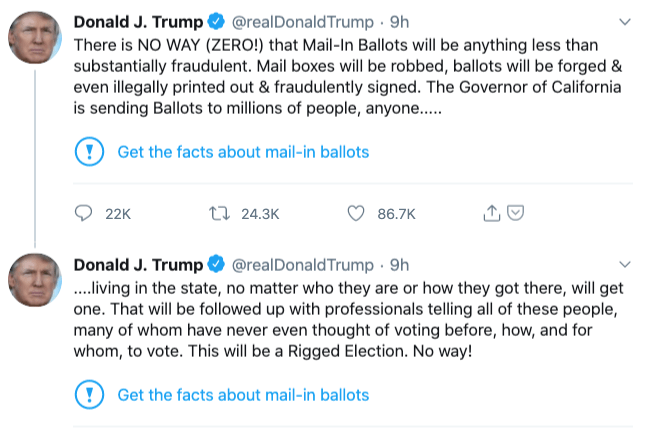
Twitter adds a warning label fact-checking Trump’s false voting claims https://ift.tt/3ektcwg On the heels of a furor over his tweets accusing MSNBC host Joe Scarborough of murder, Twitter has quietly begun to fact-check the president. A new warning label encouraging Twitter users to “Get the facts about mail-in ballots” appeared on a series of tweets in which the president baselessly claimed ballots received through mail-in voting methods are “fraudulent.”
In a statement to TechCrunch, a Twitter spokesperson said the pair of tweets from the president “contain potentially misleading information about voting processes and have been labeled to provide additional context around mail-in ballots.” “This decision is in line with the approach we shared earlier this month,” the spokesperson said, linking to the company’s recent blog post on its misinformation policies. Clicking through the new prompt from Twitter brings users to a fact-checking page highlighting a CNN story debunking the president’s false claims. The page also offers a summary with bullet points providing useful context for the misleading tweets, including the fact that vote-by-mail is already widely in use around the country. Trump has railed against vote-by-mail efforts in recent weeks, in spite of the consensus view by experts that voting through the mail is a safe process—so safe that it’s already widely used for absentee ballots and relied upon in five states as the primary method for voting. Social Media via Twitter – TechCrunch https://techcrunch.com May 26, 2020 at 05:05PM
https://ift.tt/2XxQ2K8
Twitter plans to expand its misinformation labels—but will they apply to Trump? https://ift.tt/2zxammS President Trump is again testing Twitter’s stomach for misinformation flowing from its most prominent users. In a flurry of recent tweets, Trump floated conspiracy theories about the death of Lori Klausutis, an intern for former congressman Joe Scarborough who was found dead in his Florida office in 2001—a freak accident a medical examiner reported resulted from a fall stemming from an undiagnosed heart condition. Scarborough, a political commentator and host of MSNBC’s Morning Joe, is a prominent Trump critic and a frequent target for the president’s political ire. The medical evaluation and lack of any evidence suggesting something nefarious in the former intern’s death has not been enough to discourage Trump from revisiting the topic frequently in recent days. “When will they open a Cold Case on the Psycho Joe Scarborough matter in Florida. Did he get away with murder?” Trump tweeted in mid-May. A week later, Trump encouraged his followers to “Keep digging, use forensic geniuses!” on the long-closed case.
In a statement provided to TechCrunch, Twitter expressed that the company is “deeply sorry about the pain these statements, and the attention they are drawing, are causing the family.” “We’ve been working to expand existing product features and policies so we can more effectively address things like this going forward, and we hope to have those changes in place shortly,” a Twitter spokesperson said. When asked for clarity about what product and policy changes the company was referring to, Twitter pointed us to its blog post on the labels the company introduced to flag “synthetic and manipulated media” and more recently COVID-19 misinformation. The company indicated that it plans to expand the use of misinformation labels outside of those existing categories. Twitter will not apply a label or warning to Trump’s recent wave of Scarborough conspiracy tweets, but the suggestion here is that future labels could be used to mitigate harm in situations like this one. Whether that means labeling unfounded accusations of criminality or labeling that kind of claim when made by the president of the United States remains to be seen. In March, Twitter gave a video shared by White House social media director Dan Scavino and retweeted by Trump its “manipulated content” label—a rare action against the president’s account. The misleadingly edited video showed presumptive Democratic nominee Joe Biden calling to re-elect Trump. According to the blog post Twitter pointed us to, the company previously said it will add new labels to “provide context around different types of unverified claims and rumors as needed.” Even within existing categories—COVID-19 misinformation and manipulated media—Twitter has so far been reluctant to apply labels to high profiles accounts like that of the president, a frequent purveyor of online misinformation. Twitter also recently introduced a system of warnings that hide a tweet, requiring the user to click through to view it. The tweets that are hidden behind warnings “[depend] on the propensity for harm and type of misleading information” they contain. Trump’s renewed interest in promoting the baseless conspiracy theory prompted the young woman’s widower T.J. Klausutis to write a letter to Twitter CEO Jack Dorsey requesting that the president’s tweets be removed. In the letter, Klausutis told Dorsey he views protecting his late wife’s memory as part of his marital obligation, even in her death. “My request is simple: Please delete these tweets,” Klausutis wrote. “An ordinary user like me would be banished from the platform for such a tweet but I am only asking that these tweets be removed.” Social Media via Twitter – TechCrunch https://techcrunch.com May 26, 2020 at 01:10PM Your Digital Legacy: What Happens to your Online Accounts when you Pass Away? https://ift.tt/2Xt89kg We go through life signing up to online accounts, almost without thought. Our digital footprint is likely quite large and offers significant insight into our lives. Our social media accounts, with our pictures, opinions, events, and everyday mutterings, has transformed how we record the daily ins and outs of our existence. We are leaving behind quite the digital legacy with each choice we make. Consequently, it would help if you thought about what should happen to your social media in the event of your death or the death of someone close to you. Here we explore the digital legacy policies of some of the larger social media platforms. To be forewarned is to be armed with the knowledge needed to make the right choices for you and your loved ones. Facebook gives you the option to have your page memorialised. By choosing to memorialise your Facebook profile, you are freezing the page at that moment in time – leaving photos, posts, etc. in place and visible for your friends to see. It also means no one can log into the account and change the settings in the future, protecting your identity and your memory from outsiders. You can set up a legacy contact via your Facebook settings. This contact is the person you nominate to inform Facebook of your death and who will have limited access to your account. They will be able to change your cover photo, accept new friends and pin a post to the top of the page. This is all they will be able to do – and once done, the page will remain as it is. To gain access, your legacy contact will need to submit a digital copy of your death certificate to Facebook. If you do not want your page memorialised, you can request the page is permanently deleted in the event of your death. If this is your wish, all content will disappear from the internet. The approach taken by Twitter is less clear. Many things can happen to your account when you die. The most likely outcome is that you leave details for someone else to access your account. You should note in your will what plan you have for this social media account and request these instructions be followed in the event of your death. Twitter, as per their terms and conditions, will not allow the account to be transferred to someone else in the event of your death. Therefore, the person executing your wishes will need your passwords and written permission to access it. If someone informs Twitter of your death, they will not be able to access the account. The executor can submit a death certificate and have the account deleted. You could trust a friend to go in and delete the account, or you can rely on Twitter’s inactivity policy that deletes an account after six months if not used. LinkedIn has a clear policy for dealing with a profile of someone who has died. First, they do not permit legacy profiles. The details on the site cannot be memorialised. However, if left untouched, the profile will remain online. If you want a profile deleted, you have to go to the official Help Centre for LinkedIn and fill in a form. You will be able to request the profile be removed. As Facebook owns Instagram, the policy is similar. As with Facebook, you have the option to memorialise the page. Here the memorial page remains as it was at the time of your death and is frozen. No one will be able to change the photos or comments. To memorialise the account, you will need to send a digital copy of the death certificate or a link to the obituary. Any link to the memorialised page, or mentions made of it, are monitored to help ensure that no content appears that could be upsetting to the person’s friends or family. However, it is also possible to have the account deleted with the death certificate and evidence that you are lawfully allowed to act on the individual’s behalf. OthersSites like Snapchat and TikTok have yet to develop a policy about what happens in the event of a death. Snapchat offers condolences and requests you contact them directly. TikTok promises a policy in the coming months. It is likely, as the site hosts videos that there will be a memorial option. The post Your Digital Legacy: What Happens to your Online Accounts when you Pass Away? appeared first on Social Media Explorer. Social Media via Social Media Explorer https://ift.tt/2onGYog May 26, 2020 at 09:48AM
https://ift.tt/3d8bMTm
How to Use TikTok Analytics for Business https://ift.tt/2ZD3cbt Is your TikTok marketing working? Wondering how to find and use TikTok Analytics? In this article, you’ll discover how to read, analyze, and interpret your TikTok Analytics metrics to improve your TikTok marketing activities.
How to Access TikTok AnalyticsTo get access to TikTok analytics, you need to have a TikTok Pro account. If you haven’t already, it’s easy to convert to a pro account in your settings. To do this, tap the three dots in the upper-right corner of your TikTok profile.
When your settings open, tap on Manage My Account and then Switch to Pro Account. Once you make this change, you’ll need to give it some time for data to aggregate.
When you’re ready to access your analytics, go to your account settings and select Analytics.
You’ll then see three tabs when you open your TikTok analytics: Overview, Content, and Followers. To start exploring this data, read the article below for an easy-to-follow walkthrough or watch this video: #1: TikTok Overview AnalyticsWhen you first open your TikTok analytics, you see the Overview tab. This tab shows your total Video Views, Followers, and Profile Views. By default, you see the data for the last 7 days, but if you tap on 28 Days, you can view close to a month’s worth of data.
Video ViewsThe Video Views metric is important because it’s basically your impressions and branding—like getting a billboard in Times Square. Here you can see that over the last 28 days, I had 7 million video views. The majority of these views came on 2 days—January 16 and 17. But if you look at this metric over the rest of the period, there’s continued growth and sustained video views for the most part.
If you had a high number of video views on a particular day, see what type of video caused that surge in views. FollowersNext up is your total number of TikTok followers. Look at the 28-day trend to see how much your following has grown over this time period. Being able to see the change in follower growth is really important because even if you had a video go viral, it doesn’t always translate to more followers. During this 28-day period, there was a video with almost 1 million views in 1 day but the graph below doesn’t show any accompanying spike in followers. Rather it shows steady growth in followers throughout the period.
Looking at your follower growth can help you pinpoint which videos are actually bringing you new followers. Profile ViewsThe last section of the Overview tab is your overall Profile Views. This is the number of people who were interested enough in your video to click through to your TikTok profile. These are the people who are most likely to become followers. The Profile Views metric can help you determine if your videos are actually bringing people closer to you.
#2: TikTok Content AnalyticsNow let’s look at the analytics on the Content tab, which includes your video posts and trending videos. Video PostsThe Video Posts section shows all of the TikTok video posts you’ve published in the last 7 days. Listed on the thumbnail for each video is the total number of views on that video.
Trending VideosBelow your video posts, you’ll see your trending videos, which are the videos that are getting views. Look at all of your trending videos and see if they have anything in common. For example, maybe your face was brightly lit, you were wearing a pink blazer, you were being really goofy, or you were talking about a particular topic. Start to find trends and patterns across your trending videos. Become the Social Media Marketing Rockstar for Your Business
Meet your secret team that makes you look like a social media genius and empowers you to embrace change! We’re a genuine community of marketers from your friends at Social Media Examiner. And we’re here to support you. Think of us as your career insurance policy. We keep you focused on what matters. We make sure you won’t be left behind as the changes keep coming. Join the Social Media Marketing Society. Get access to monthly online training, expert support, and a thriving community of marketers who will empower you to succeed. CLICK HERE TO ENVISION A BETTER FUTURE
#3: TikTok Followers AnalyticsThe Followers tab provides a wealth of information about your following including your total number of followers, their gender, where they live, when they’re active on TikTok, and what other videos and sounds are popular among them. Remember that this data will be different for every account. FollowersFirst you see your TikTok follower count and the percentage increase or decrease in followers over the last 7 days. Here you can see that I have 117,000 followers and my account grew by 5,088 followers over the last 7 days. Keep an eye on the change in followers for your own account week over week.
GenderBelow your follower count, you can see the breakdown of your audience by gender. My TikTok following is 66.9% female and 33.1% male. My audience is 83% female so this is pretty much in line with my other platforms’ analytics. Top TerritoriesTop Territories shows a breakdown of your followers by location. Until the point where I intentionally went global with my TikTok, 92% of my following was in the United States, Canada, Australia, the UK, and New Zealand. Now you can see I have a much more global audience, which is exciting to me.
Follower ActivityFollower Activity is where you can see the times and days that your followers are most active on the platform. Looking at this data will help you find the best times to publish on TikTok for your audience. If you look at your follower activity by day, you can see what days of the week your audience is most active. In the image below, you can see that my audience is active pretty evenly across the entire week.
You can also view activity by hours of the day to see the times when your audience is most active. The graph below shows a spike in activity between 4 PM and 6 PM for this particular day.
You can also analyze hourly data for other days. Looks like once again, the mid-afternoons and evenings are powerful.
If you identify trends of when your audience is most active on TikTok, you want to publish an hour or two before that. Keep in mind that the best time to publish content will be different for every account. My audience is mostly moms so my audience’s active times make sense for them. But your audiences’ active times might be completely different. Every brand’s audience will have different peak times so you need to analyze your own data to find your best time to publish. Videos Your Followers WatchedIn the next section of the Followers tab, you can see the other TikTok videos that are popular with your followers. Look at the content they’re watching to get an idea of the type of humor and interests they have and what they may want to learn more about.
Sounds Your Followers Listened ToYou can also see what sounds your followers have listened to. Maybe you’ll want to jump on these trends and record videos with these sounds. In the image below, the top sound has an inappropriate word in it, which is often the case on TikTok. So be careful when choosing a sound for your TikTok video and make sure you listen to the full audio before you record with it.
ConclusionNow you know how to read, analyze, and interpret your TikTok analytics data to see if your marketing is working. You can find out what content is resonating with your audience and discover the peak times to post on TikTok to reach your audience. What do you think? How will you use your TikTok analytics data to improve your content? Share your thoughts in the comments below. More articles on TikTok marketing:Join thousands of fellow marketers. Receive the training and support you need to accomplish your marketing objectives! Join Now Doors close soon! Social Media via Social Media Marketing | Social Media Examiner https://ift.tt/1LtH18p May 26, 2020 at 05:01AM
https://ift.tt/2WYES1O
How to Manage Multiple Twitter Accounts From Your Desktop or Phone https://ift.tt/2TxQI0M If your social media strategy involves multiple Twitter accounts, you need a simple process for keeping your content organized. Otherwise you run the risk of posting a message meant for your personal account on your business profile (oops!). Or getting so overwhelmed that you miss opportunities to engage with your customers. Fortunately, we’ve got step-by-step instructions to make it easier for you to stay on top of all the Twitter accounts you manage. In this post you’ll learn about:
Bonus: Download the free strategy guide that reveals how Hootsuite grew our Twitter following to over 8 million users and learn how you can put the tactics to work for your business. Is there an app for managing multiple Twitter accounts?Twitter allows you to toggle between up to five accounts. You can do this on a desktop browser or through their mobile app. You can also use Hootsuite, our social media management platform, to manage multiple Twitter accounts (as well as accounts on more than 35 other social networks) in one dashboard. With this tool, you can view, schedule, and publish content from all your Twitter accounts in the same place, without having to toggle between accounts. You can even find and edit images for your Tweets in Hootsuite. To get started, sign up for a Hootsuite account. You can start with a free account, which allows you to manage three profiles, or select a paid plan that fits your needs. How to switch between multiple accounts on TwitterTwitter allows you to add and manage up to five accounts. Step 1: Starting from your Twitter home screen, click the … More button in the right-hand menu, and then the + symbol in the top-right corner of the pop-up menu.
Step 2: Click Add an existing account. Log in to your other accounts, one at a time.
Step 3: To switch between accounts, click the …More button again. You’ll see the profile icons for your other accounts at the top. Click to switch to another account.
How to switch between multiple accounts with the Twitter mobile appThe process for adding multiple Twitter accounts to the app is very similar. Step 1: Open the app and tap your profile icon in the top-left corner to open the menu. Step 2: Tap the … icon in the top-right corner, then tap Add an existing account in the pop-up menu.
Step 3: Enter your login details. Once you are logged in, you’ll see your other account icons along the top of the menu. How to remove one of your Twitter accountsNow that you know how to add and switch between multiple accounts, the process of removing an account will seem familiar! To remove a Twitter account on desktop, just toggle to the profile you want to remove and log out. You’ll remain logged into your other accounts. You can also click the … icon to open up a list of your connected Twitter accounts, and then log out of all of them in one place.
To remove a Twitter account on mobile, tap the … button. You’ll see a pop-up menu with a list of your connected accounts. Tap Edit in the top-left corner, then remove your selected accounts. How to add multiple Twitter accounts to HootsuiteYou can add multiple Twitter accounts as part of your Hootsuite set-up, or you can add them later. During set up, click on the Twitter icon and sign in to each account you want to add. Step 1: Click your profile icon in the top-right corner, then select Manage Social Networks. Step 2: For accounts that only you will manage, click + Private Account. For shared business accounts, scroll down! Step 3: A pop-up window will open and prompt you to sign into Twitter.
Step 4: Authorize Hootsuite to access your Twitter data by entering your username and password. Step 5: Repeat the process with your other accounts. You may need to log out on Twitter in your browser after each addition. Note: Twitter accounts can only be connected to one Hootsuite account. That means if you try to add a network that is “owned” by a colleague or another person, you’ll have to request permission to reclaim it. How to manage multiple Twitter accounts on desktop (Mac and PC)Now that you’ve added your accounts, you can organize your Hootsuite dashboard to keep track of all your content by setting up your streams and tabs. Streams display content in columns, allowing you to monitor things like posts, retweets, mentions, followers, and hashtags. Tabs organize your streams like individual folders, so you can separate streams by Twitter account or activity. Step 1: Select the Twitter account you’d like to monitor in your first tab.
Step 2: Customize the content you’d like to see by Adding Streams. You’ll see a menu of options, like My Tweets, Scheduled, Mentions, and more.
Step 3: Add a new tab at the top by clicking the + symbol. Then add the account and Streams you want to monitor to that tab. Step 4: Give your tabs descriptive names so you can keep track of what you’re monitoring in each one. For multiple Twitter accounts, you probably want to name one tab for each account. Double-click the tab to rename it. Tip: Direct messages sent to your Twitter accounts will appear in the Inbox, which you can find in the left-hand menu of your Hootsuite dashboard. When you have a new or unread message, the Inbox icon will have a red dot. You can click the Filter button to view specific messages from one of your Twitter accounts. How to manage multiple Twitter accounts from an iPhone or AndroidThe Hootsuite app syncs with the desktop version, so you can seamlessly monitor your Twitter activity and engage with your audience from anywhere. Step 1: Install Hootsuite from the Google Play or App Store and open the mobile app.
Step 2: On the Streams screen, you’ll see your streams listed. Streams are ordered based on how your desktop dashboard is set up. To reorganize streams and tabs, tap Edit at the top, then add, delete or move your streams around.
Step 3: You can add a new stream by searching at the top of the page for an account, hashtag or keyword. This is useful if you’re live-tweeting at a conference or event.
Step 4: Tap Save to add it as a stream. Select the account, then select the tab.
Your new stream will appear with the others. New streams added on mobile will be synced to the Desktop version. Step 5: You can also tap the Publisher icon to see your scheduled posts and drafts. Tap each message to see more details, edit the post, or delete it.
In the Composer, you can compose your tweets and select which account you’d like to post to. More on that below!
How to post on Twitter to multiple accountsComposer is the primary method for publishing your tweets in Hootsuite. Step 1: To start publishing, click New Post at the top of the screen.
Step 2: Select the account you want to tweet from in the Post To field. If you want to post the same tweet to multiple accounts, simply select them all.
Step 3: Add your text. To mention another account, start typing their handle. Hootsuite will auto populate existing Twitter accounts, so you can select the right handle when you see it. If you add a link, you can choose to shorten the URL. Tip: Shortening URLs also makes them trackable, so you can see in your Analytics how many people are clicking on your link. Step 4: Add your media. You can upload files from your computer, or browse assets in the Media Library, which contains free images and GIFs. Step 5: Double check the preview to make sure everything looks perfect. Hit Save Draft if you want to mull it over.
Step 6: You can Post Now or Schedule for Later to choose the time and date of posting. You can also turn on AutoSchedule, to let Hootsuite select the optimal time to publish.
Step 7: Return to Publisher to view your Drafts and Scheduled posts at a glance. Click Planner view at the top of the screen to see your content laid out in a calendar format. If you see a gap in your content calendar, just click on the empty space in the calendar to add a tweet to it. You can filter content by Twitter account by clicking on the Networks listed on the sidebar.
You can also click the Content view at the top of the screen to see your drafts and scheduled posts laid out in a list format.
Tip: With some Hootsuite plans, you can use the Bulk Composer to upload a large batch of tweets (up to 350) to any of your Twitter accounts. If you’re running a campaign or promotion, this can be an effective way to quickly prepare your content for posting.
How to manage multiple business Twitter accountsIf you’re managing professional accounts, Hootsuite has some features that can be especially useful. Optimizing your streams to keep track of competitors, industry trends and popular hashtags ensures you’ll see the important conversations that impact your business. The Analytics tab allows you to see at a glance how your accounts are performing, with key metrics on audience engagement and growth over time.
You can see the sentiment of your inbound messages at a glance in your Twitter Reports, or use the Hootsuite Insights tool for greater precision.
If you’re managing business accounts that are shared between multiple teammates, you may benefit from a Team, Business or Enterprise plans, depending on the number of teammates and the other features you want. Shared accounts are added differently than Private Networks. Instead, you add them by clicking on the Share a Social Network button.
With these plans, you can set different permission levels for team members, and assign messages to different teammates to follow up on. The Hootsuite Inbox makes it easy to keep track of who is responding to each message. Bonus: Download the free strategy guide that reveals how Hootsuite grew our Twitter following to over 8 million users and learn how you can put the tactics to work for your business. Get the free guide right now!How to remove a Twitter account from HootsuiteStep 1: To remove an account, click on your profile icon in the top-right corner, then click Manage Social Networks.
Step 2: Click the gear icon on the Twitter account you want to remove, then select Remove from Hootsuite.
5 tips for managing multiple Twitter accounts1. Don’t repeat identical tweetsJust because you can, doesn’t mean you should. Duplicating your tweets on a single account, or posting the exact same message on different accounts, saves time and effort—but it has a cost. It risks coming off as spammy or robotic, which can alienate your followers. Twitter doesn’t like it either, and may flag your account as a result.Instead, you can use core messaging and tweak it slightly with different wording, images, or hashtags. Here are more tips for writing unique messages effectively. 2. Use social listeningSure, posting is a big part of social media, but so is listening. Don’t get so caught up on sharing your own content that you miss out on important discussions that are relevant to your business. These give you the opportunity to respond to customer concerns, connect with new followers and build your reputation. In Hootsuite, you can set up dedicated streams to monitor conversations about your business. For instance, you can have a stream for an industry-specific hashtag, or one for your biggest competitor.
Learn more about social listening and how it can help your Twitter strategy. 3. Include images and videosDid you know tweets with images get up to 313% more engagement? Adding photos, videos, GIFs, infographics, or illustrations help your tweets stand out and hold your audience’s attention. The Hootsuite Media Library provides hundreds of free images and GIFs that you can edit and add to your tweets. 4. Post at the right timesTiming is important when it comes to engagement. You want to post when your audience is active, and therefore more likely to see and share your content. That means no posting at 3:00am, unless you’re trying to reach vampires or new parents. We’ve crunched the numbers on the best time to post on Twitter, depending on your business. You can manually schedule your tweets to hit that window, or use the Hootsuite Autoschedule feature to optimize post times for engagement. But remember, each of your Twitter accounts will attract slightly different audiences, meaning that the best time to post might be different for each account. 5. Track your performanceWith Hootsuite Analytics, you can monitor your performance and look for trends and patterns to refine your Twitter strategy. Is one of your Twitter accounts doing better than another? Use analytics to find out why. Detailed reports can also help you demonstrate your impact, and explain to clients how social strategy helps their business. And measuring your impact will help you manage your time effectively on social. You might even find enough time to start another Twitter account! Have fun! Manage all your Twitter accounts in one place, alongside your other social channels, using Hootsuite. Schedule posts in advance, engage your followers, and save time! The post How to Manage Multiple Twitter Accounts From Your Desktop or Phone appeared first on Hootsuite Social Media Management. Social Media via Hootsuite Social Media Management https://ift.tt/1LdunxE May 25, 2020 at 08:20AM |
Amazing WeightLoss Categories
All
Archives
November 2020
|


 RSS Feed
